How to install it, connect Claude Code or Codex, use every pane, and drive all of it from the command line. Every picture is the real window, and every answer under a command is what a real window printed.
Unluminous is a code editor for Windows and macOS, written in Rust, in which an AI agent can do everything you can do, through the same commands you use.
It opens any file that holds text. It has a file explorer, tabs, a terminal along the bottom, syntax colouring from twelve language plugins, completion, go to definition, find all references and rename, git, run configurations, a debugger, a database explorer, notebooks, and a Markdown preview that draws Mermaid diagrams.
It also has four things built for working with an agent: Agent Chat, a chat pane that runs the Claude Code, Codex, OpenCode or Pi you already have; Agent Tasks, a board whose tickets an agent works in a terminal; the Realm, an infinite canvas of terminals, editors and chats that agents can drive; and the Designer, where you pin notes to a web page and an agent changes it.
The rule the whole editor is built on is one sentence: everything a person can do in the window, an agent can do too, through the same command. Opening a file with Ctrl/Cmd+Shift+O and running unluminous-cli modal open go-to-file are one feature. A breakpoint you set by clicking the gutter and one an agent sets with unluminous-cli debug breakpoint add are the same breakpoint, drawn the same way, in the same file.
Unluminous holds no API keys and sends nothing you did not ask for. The agents it runs are the programs already signed in on your machine. It sends two things on its own, the daily update check and anonymous usage statistics, and Settings -> Editor turns off each of them.
An agent drives the window you are looking at. A file it opens is open in front of you, a rename it makes is one undo step you can undo, and a breakpoint it sets is a red dot you can see.
What an agent is given is generated from what the editor can do. A command added to Unluminous is a tool for agents the day it is added. There are 263 commands today.
Download the installer for Windows or the archive for macOS from the top of unluminous.com, run it, and open a folder. Unluminous checks for a newer version once a day and installs it with one button.
On Windows, UnluminousSetup-<version>-x64.exe installs Unluminous for you alone, with no administrator rights, into %LOCALAPPDATA%\Programs\Unluminous. It adds a Start Menu entry, puts both programs on your PATH, adds Unluminous to *Open with*, and connects the coding agents it finds on the machine (Claude Code, Codex, OpenCode and Pi) to the Unluminous MCP server. If anything is left, such as a step you unticked in an older installer, Set Up Unluminous offers it the first time the window opens, and Unluminous -> Set Up Unluminous... brings it back at any time. The size and the SHA-256 of each download are printed beside it on the install section.
On macOS, the archive holds Unluminous.app, built for Apple silicon and Intel in one bundle, signed and notarised. Move it to /Applications. The first time it starts, Unluminous opens Set Up Unluminous, which lists each step (unluminous-cli on your PATH, each coding agent it finds, the speech model and the microphone) and takes the ones you leave ticked when you press Run Setup. /Applications/Unluminous.app/Contents/MacOS/unluminous-cli setup does the same from a terminal, except the microphone, which macOS only lets Unluminous ask for itself.
Two programs are installed. unluminous is the editor. unluminous-cli drives a running editor from a terminal, a script or an agent, and is what the command line chapter is about.
unluminous . opens the folder you are in. unluminous README.md opens a file and shows the folder it is in. Started from the desktop with no folder named, Unluminous opens the windows that were open last time.
Each Unluminous window shows one project, and each window is its own process. File -> New Window opens another window on the same project, File -> Open Folder opens a window on a folder you choose, File -> Recent Projects opens one you had before, and File -> Create Project... makes a new folder, starts a git repository in it and opens it.
What a project had open is kept in a .unluminous folder inside the project, beside .idea and .vscode: the tabs and where each was scrolled, the panels that were showing, the terminal tabs and the folder each shell was in, the folders opened out in the explorer, the breakpoints, the marked passages and the run configurations. Copying the project copies that state. Add .unluminous/ to .gitignore if you would rather it stayed on your machine.
A terminal comes back as a fresh shell in the folder it was in, with its last screenful printed back into it. The program that was running in it does not come back; Agent Tasks and the Realm can resume an agent's conversation by its session id instead.
%APPDATA%\Unluminous on Windows and ~/Library/Application Support/Unluminous on macOS. Everything there is plain text you can read and edit: settings.conf holds every setting as a name = value line, recent.txt the projects you opened, plugins/ the plugins you installed by hand, and instances/ one file for each running window, holding the port and the token unluminous-cli uses to reach it.
Once a day Unluminous asks unluminous.com whether there is a newer release. When there is, a notice offers Install & Restart and Don't Ask Again. Install & Restart downloads the installer, checks its size and its SHA-256 against what unluminous.com published, installs it, and starts the new version on the projects you had open. Don't Ask Again skips that one version; a later one is offered.
Unluminous -> Check for Updates asks at any time. Settings -> Editor sets the check to daily, at every start, or off. Unluminous -> About Unluminous shows the version and the date it was built, which is how to tell whether the build you are running has a fix in it.
Each switch sets a starting state without clicking. An argument that starts with a dash and is not one of these is refused, and Unluminous exits with status 2 rather than opening a folder of that name.
Switch
What it does
--background
Open the window without bringing it to the front, so the keyboard stays where it was. How an agent or a script starts one.
--terminal
Open the terminal along the bottom straight away.
--opacity N
The background opacity to start at, from 0.05 to 1.
--view raw|side|preview
How a Markdown file is shown to begin with.
--control off
Close the channel unluminous-cli drives the window through.
--version
Print the version and the build date, and stop.
--print-menus
Print every menu with its shortcuts, and stop.
From the command line
Start a window and wait for it
`launch` starts Unluminous on a folder and returns once the window is ready for commands. Add `--no-wait` to return at once.
Command
unluminous-cli launch .
The running windows
Every window on this machine, with its process id, its port and its project. A command goes to the only window, or to the one whose project you are in; `--instance` names one when there are several.
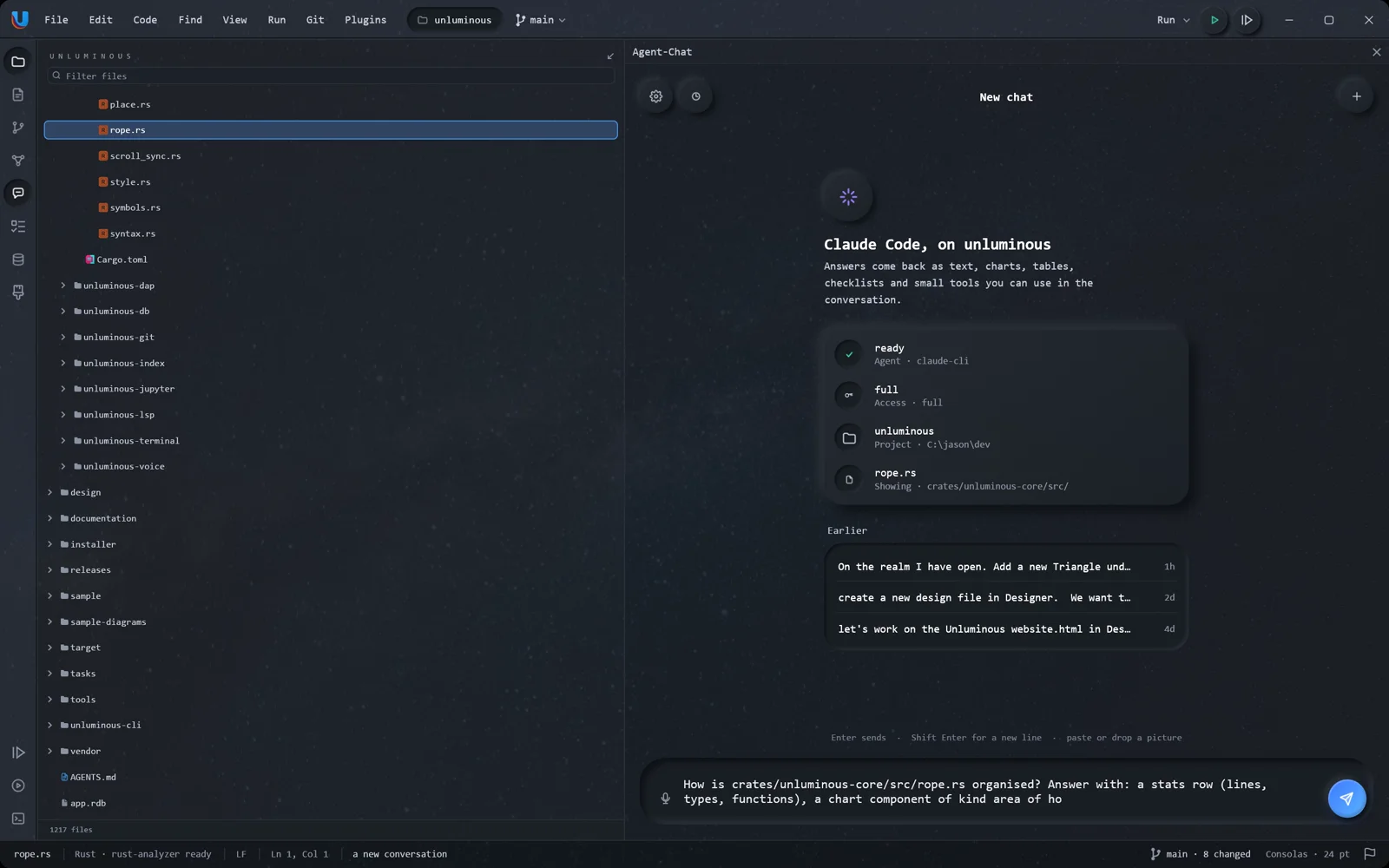
A title bar with the menus, a rail of buttons down the left, the file explorer, the editing area with a tab for each file, whichever tile is open along the bottom, and a status bar.
The title bar holds the nine menus, the project and its branch, and at the right the text tools for a Markdown file, the run configuration with its Run and Debug buttons, and the window buttons. On macOS the menus are in the bar at the top of the screen and the window buttons are at the left.
The rail down the far left has one round button for each panel: the explorer, the editing area, git, the Realm, Agent Chat, Agent Tasks, the database explorer and the Designer at the top, and the debug tile, the run tile and the terminal at the bottom. A button is drawn pressed in while its panel is showing. The rail is the way a panel is put away and brought back.
The status bar names the file that is showing, its kind, its line endings and where the caret is, and on the right the branch, how many files have changed, and the font.
The explorer, a file, and the terminal along the bottom. The rail of panel buttons runs down the far left.
Every panel, the terminal, the run and debug tiles, the Realm, and each pane a plugin adds, can sit on any of the four sides. Drag a panel by its header and four blue bands show where it can go. Let go on the pill marked Fill whole side and that side runs the whole length of the window. Right click a panel header or its rail button for the same moves as menu entries. View -> Reset Panel Layout puts everything back.
Drag the edge of any panel to resize it, and double click the edge to put it back to its usual size. Double click a panel's header to fill the window with it, and press Escape or double click again to put the others back. Where your panels are is kept in your settings rather than the project's, so it is the same in every project you open.
The terminal, the run tile and the debug tile share one strip and show one at a time, because two character grids in one strip are each too small to use. Move the terminal to another side and it can show beside the other two.
Ctrl/Cmd with plus and minus, or with the wheel or a pinch, zooms whatever is under the pointer: the editing area changes the editor font size for every open file, the terminal changes its own font size, and the explorer and the plugin panes each keep a zoom of their own. The line under the pointer stays where it was. A dialog that is open zooms instead.
Every dialog can be dragged by its header and resized from any edge. A double click on the header puts it back in the middle. Enter presses the last button along the bottom, the one that does the thing; in the commit dialog it is Ctrl/Cmd+Enter, because Enter there starts a new line of the message.
Find -> Find Action... lists every menu entry and narrows it as you type, ranked the same way Go to File ranks names. A dimmed entry is listed dimmed, and running it says why it cannot run now.
A menu entry that could be used in a moment is dimmed, such as Undo with nothing to undo. A control that can never apply to the file showing is not drawn at all: the text formatting tools are not offered for a source file. Every entry can also be run by name with unluminous-cli action run.
Menu
What is in it
Unluminous
About Unluminous, Check for Updates, Settings, Quit.
File
New Window, Open File, new notebooks, Open Web Address, Go to File, Create Project, Open Folder, Recent Projects, Reopen Closed Tab, Save, Save As, Close Window.
Edit
Undo, Redo, Cut, Copy, Paste, Select All, the four highlight colours, Navigate Back and Forward, Settings.
Code
Go to Definition, Find References, Rename Symbol, Complete Word, comments, the line commands, Go to Line, Go to Matching Bracket. Shown for a file whose language can answer them.
The three Markdown views, the explorer, the editor, line numbers, Maximise Pane, font size, tabs, Split, Folding, the three tiles, the Realm, Reset Panel Layout and the terminal tabs.
Run
Run, Stop, Rerun, Edit Configurations, and the debugger: Debug, Resume, the three steps, Run to Cursor, Toggle Breakpoint, Evaluate Expression.
Git
Commit, Add, Show Diff, history, blame, Rollback, Push, Pull, Fetch, Merge, Rebase, branches, tags, stash, remotes and Clone.
Plugins
What each plugin added: Agent Chat, Agent Tasks, Database, Designer and the Realm.
Shortcuts
Ctrl/Cmd+Shift+A
Find Action: run any menu entry by name
Ctrl/Cmd+Shift+O
Go to File
Ctrl/Cmd+0
Show or hide the explorer
Ctrl+`
Show or hide the terminal
Ctrl/Cmd+Shift+M
Maximise the panel that has the keyboard
Ctrl/Cmd+Plus,Ctrl/Cmd+Minus
Zoom what is under the pointer
Ctrl/Cmd+Shift+N
New window
Ctrl/Cmd+,
Settings
From the command line
Where the panels are
Each panel, the side it is on, its size and whether it is showing.
Command
unluminous-cli panel list
Answerobserved
5 panels, 1 showing
*explorer  left    0   324 x 260   at 44,46 324 x 1422
 terminal  bottom  0   420 x 560   not showing
 run       bottom  1   420 x 260   not showing
 debug     bottom  2   520 x 300   not showing
 realm     right   0  1036 x 272   not showing
whole length: top, bottom
Move the terminal to the right
The same change dragging its header makes. `panel reset` puts every panel back.
Open Settings, go to Tools -> MCP, and press Install for Claude Code, Install for Codex, Install for OpenCode or Install for Pi. The installers have usually done this already. Restart the agent, and it can drive Unluminous: open files, edit them, run commands in the terminal, search, use git and the debugger, and look at a screenshot of the window.
Unluminous includes a Model Context Protocol server. MCP is the way an agent such as Claude Code, Codex, OpenCode or Pi learns which tools it has. The install buttons write Unluminous into the agent's own configuration, using the agent's own command (claude mcp add-json or codex mcp add) when it is on your PATH, and edits OpenCode's and Pi's own files (~/.config/opencode/opencode.json and ~/.pi/agent/mcp.json) directly. The agent then starts Unluminous's server itself each time, over a pipe, so nothing listens on a port.
In Claude Code, /mcp lists Unluminous after a restart. Ask it to open a file, run the tests in the terminal, or show you the failing line, and it does it in the window you are looking at.
For an agent with no button, the same page shows the configuration block to paste, and unluminous-cli mcp config prints it.
The tools are generated from the same list of commands unluminous-cli reads, so the agent can do everything the command line can, and a command added in a later version is a tool the day it is added. A test in the Unluminous repository fails if any command is not offered.
By default there is one tool for each area, such as unluminous_editor, unluminous_tab and unluminous_git, plus three narrow tools for go to definition, find references and rename. That is 31 tools, about 29,000 tokens of the agent's context. Setting the tool shape to one tool a command makes 261 tools and costs about two and a half times as much, and lets an agent that permits tools by name allow tab open and refuse quit. --areas editor,git offers only those areas.
window screenshot answers with the picture itself, so an agent can look at what a command did. The whole command reference is offered as a resource at unluminous://commands.md.
Several Unluminous windows can be running, one for each project. A call goes to the window named by instance, or the only window running, or the window whose project the agent was started in. When none of those decides it, the call is refused with the list of windows rather than sent to a guess.
An agent that wants a URL rather than a program can use http://127.0.0.1:7345/mcp. Tick Also serve over HTTP on this machine on the MCP page, or run unluminous-cli mcp serve --transport http. It is off by default because anything on your machine that can reach the port could run a command in your terminal. It only listens on 127.0.0.1, and it refuses a request from a web page.
From the command line
Connect every agent on the machine
What the installer runs. It finds Claude Code, Codex, OpenCode and Pi, connects each one, leaves alone an entry that already points at another Unluminous, and checks that the server answers. Running it again changes nothing; `--check` changes nothing at all, and `--remove` takes Unluminous out again.
Command
unluminous-cli setup
The block to paste into any other agent
Prints the `mcpServers` entry that starts Unluminous's server.
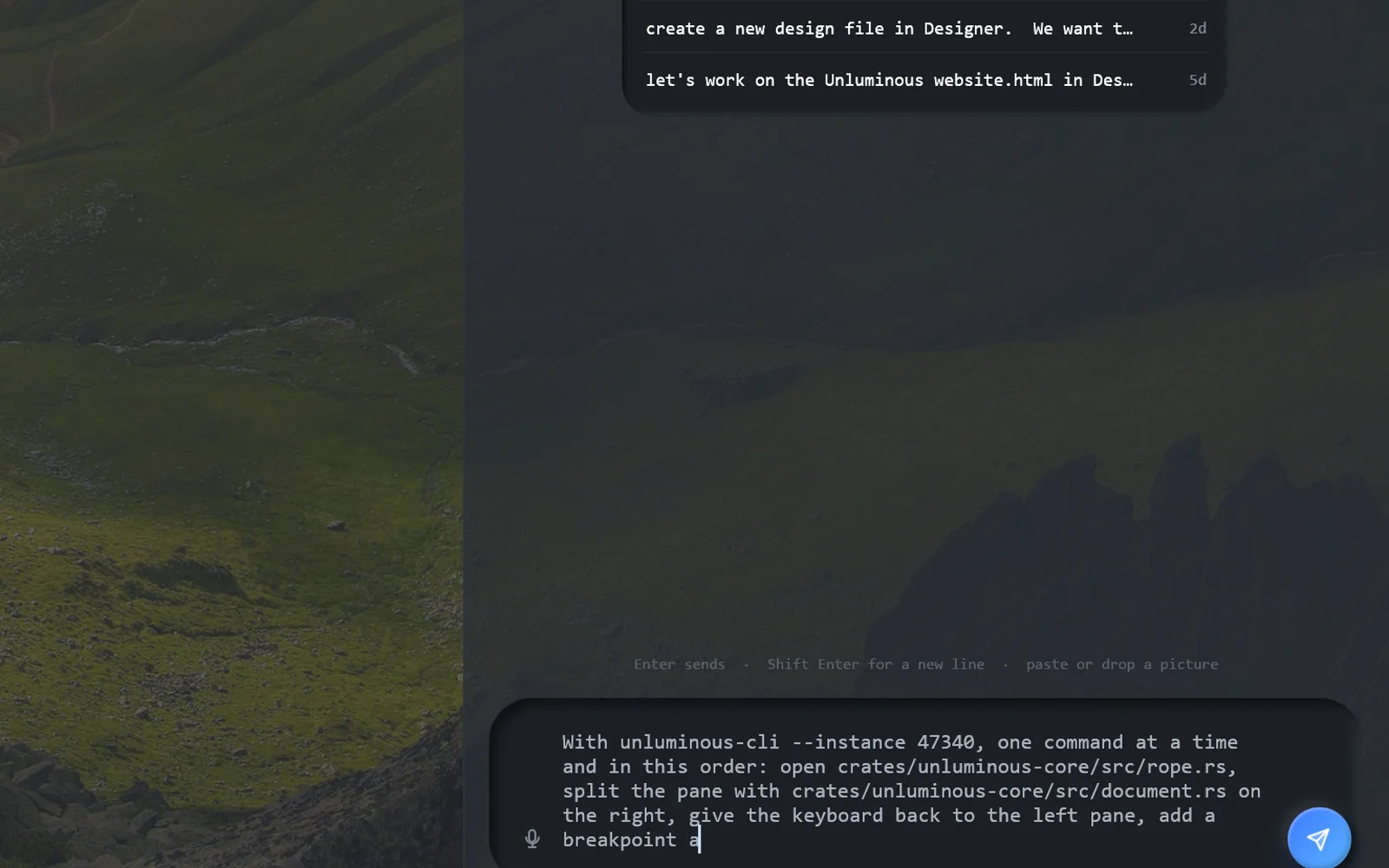
A chat pane beside your work that runs the Claude Code, Codex, OpenCode or Pi already installed on your machine, in the project the window has open. Unluminous holds no key.
Open it from the chat button on the rail. Type a question and press Enter. The answer streams in as the agent writes it, and each tool the agent runs, such as reading a file or running a command, is shown as a folded block you can open. Under a finished answer are Copy, Run again, how long it took and how many tokens it wrote.
Because the agent is the program you already use, it has its own sign in, its own tools and its own permission rules, and it reads the project's CLAUDE.md or AGENTS.md. A follow up question resumes the same conversation, so the agent keeps the context it built. Unluminous runs none of the agent's tool calls; it shows them.
An answer can hold components as well as words: charts, tables, stats, steps, checklists, forms, diffs, file lists, diagrams and small calculators. The agent writes them as a block of JSON, and they are drawn as the answer arrives. A button in a component can send a message, fill the box you type in, open a project file or copy text, and nothing else.
⤢
Asking Claude about a file. Sped up while Claude thinks.
You can keep typing while an answer is arriving. A message sent then is shown at once, marked Queued, and goes when the answer ends. If the answer fails, or you press Stop, the queued messages come back into the box so nothing you typed is lost.
Paste or drop a picture into the box to send it with the message. Select words in any message and copy them with Ctrl/Cmd+C or the right click menu. A link in an answer opens in a browser tab inside Unluminous; its right click menu can open it in your own browser instead.
The agents Unluminous can talk to are one list, in Settings -> Tools -> AI Configuration. Agent Chat, Agent Tasks and the Designer each pick from that list. A row either runs a program (claude-cli, codex-cli, opencode-cli or pi-cli) or sends to an address that speaks the OpenAI, Anthropic or Responses API, such as a local llama.cpp, LM Studio or Ollama server. A row that sends to an address names the environment variable its key is in; the key itself is never written by Unluminous. A program that is not installed is not offered.
The gear in the chat's header opens the chat settings: which model, and how much of the context the conversation has used, for an agent that reports it.
Settings -> Tools -> AI Configuration: one list of agents for every pane.
Settings -> Plugins -> Agent-Chat sets what the agent may do, as read, edit or full. The default is full, because it is your own agent, started by you, in your checkout. Codex enforces read with an operating system sandbox; Claude Code enforces it with its own permission mode, which is its policy rather than the machine's. Pi asks before no tool call, so read gives it only its read, grep, find and ls tools, and edit adds edit and write.
A row that sends to an address can be offered Unluminous's own commands as tools. That is off unless you turn it on, and the commands that run a program of the model's choosing, such as terminal send, need a second switch.
From the command line
Ask from the command line
`send` does not wait for the answer; `state` says when it has finished and `last` reads it.
Command
unluminous-cli plugins run agent-chat send "why is this test failing?"
The agents the pane can use
Each row of AI Configuration, with whether its program or its key is there.
A task board whose tickets are worked by an agent. Write a ticket, press play, and an agent starts in a terminal Unluminous owns, works the ticket, ticks off its todos, comments on it and moves it to Agent Done.
The board has four lanes: New, QA Failed, In Progress and Agent Done. A card shows its title, how many of its todos are done, its key, and a play button. Beside the board are three listings: Backlog, Completed and Epics. Sprints group the tickets; the ring at the top says how much of the sprint is done.
Click a card to open the ticket: its description in Markdown, its fields, its todos, its comments, and the agent. Press play on a card, or Start on the ticket, and the agent named on the ticket starts in its own terminal in the project, with the ticket handed to it. The agent reports back through unluminous-cli plugins run agent-tasks: it adds and ticks todos, posts comments, and moves the card.
The board is one database file on your machine, so there is no server to run and nothing to install. Every window shows the same board, and a ticket made in one window appears in the others within a second.
The Agent section of a ticket has two tabs. Chat shows the agent's conversation, read from Claude Code's own transcript, with the same composer Agent Chat has: what you type there goes to the agent in its terminal. Terminal shows the terminal itself. To Side Pane moves the conversation into the Agent Chat pane so you can watch it while you work.
Comment & Send to Agent posts a comment and types it into the agent, starting the agent if it is not running. While its agent is running, a ticket cannot be moved to Agent Done with todos unticked, which keeps a ticket from being handed back half done.
Every section of the ticket folds, and the description, the terminal and the comments can each be made taller by dragging their bottom edge.
A ticket: its description, its todos, its fields and the agent working it.
Chat with supervisor starts one agent that works the board for you: the QA Failed tickets first, then New, one at a time. It runs in a terminal of its own, in the project folder, and you can talk to it from the same dialog.
A ticket is assigned to one of the agents in Settings -> Tools -> AI Configuration: Claude Code, Codex, OpenCode, Pi, or a person. The board's own settings page chooses which agent a new ticket goes to.
From the command line
The board as data
The sprint, the four lanes and each card.
Command
unluminous-cli plugins run agent-tasks board
File a ticket and start an agent on it
`new-task` answers with the ticket's key. `describe` writes its description, and `start` hands it to the agent.
Command
unluminous-cli plugins run agent-tasks new-task Read overflow pages in the SQLite reader
unluminous-cli plugins run agent-tasks describe task-18 The reader stops at the first page of a long row.
unluminous-cli plugins run agent-tasks start task-18
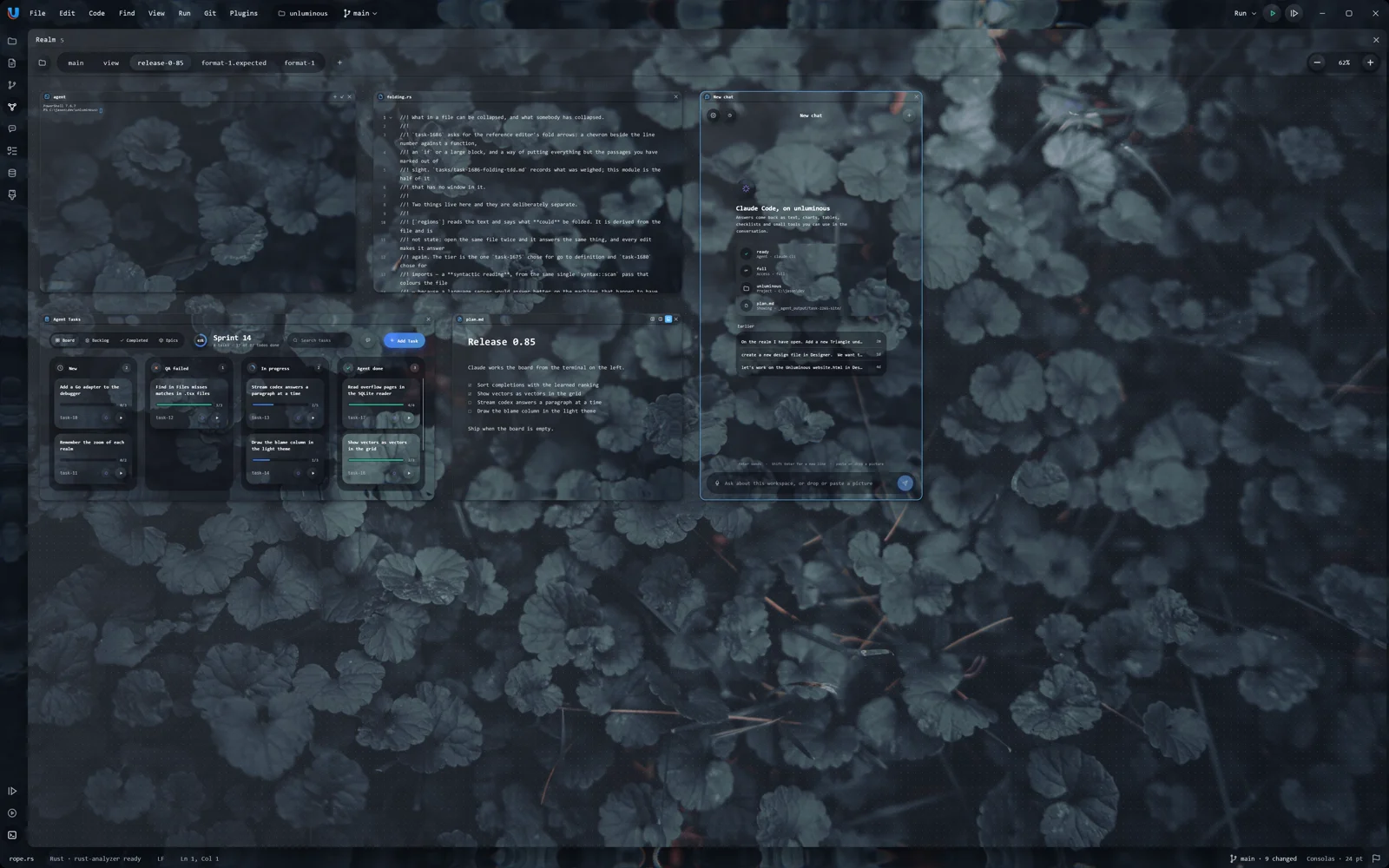
An infinite canvas of real things: terminals, file editors, web pages, folder trees, agent chats, the task board, notes, pictures, sounds and videos. Wire a terminal to an editor, and the agent running in that terminal can drive the editor.
Open it from its rail button or View -> Realm. Choose View -> Realm -> Add Node... to put a node on the canvas, or drop a file from the explorer onto it. Drag a node by its header, resize it from its edges, and pan and zoom the canvas with the wheel. A node is the real thing rather than a picture of it: a file editor node is the editing area with its gutter, completion and breakpoints, and a terminal node is a shell.
A realm is a .realm file in the project, kept in .realm-files/, so you can commit it, review it and share it like code. A project can hold as many realms as you like; the bar along the top of the panel switches between them. What one person was doing in a realm, such as where the camera was, is kept apart from the file, so looking at a realm leaves git status clean.
⤢
Building a realm and wiring the agent to what it may touch.
Drag from a node's connection point onto another node to wire them, or run unluminous-cli realm connect. A connection is what lets an agent in a terminal node act on the node it is wired to: put a file in an editor node, read a terminal node, point a browser node at an address. An agent in a node asking about a node it is not wired to is refused, with the list of what it is wired to.
Each terminal node has unluminous-cli on its PATH and UNLUMINOUS_REALM_NODE set to its own id, so an agent started in one can run unluminous-cli realm here to learn which node it is and what it can reach. A connection can also pipe each line one terminal prints into another; that is off unless you turn it on.
From the command line
Add a terminal running Claude Code beside an editor
`realm add` answers with the new node's id, which `realm connect` takes.
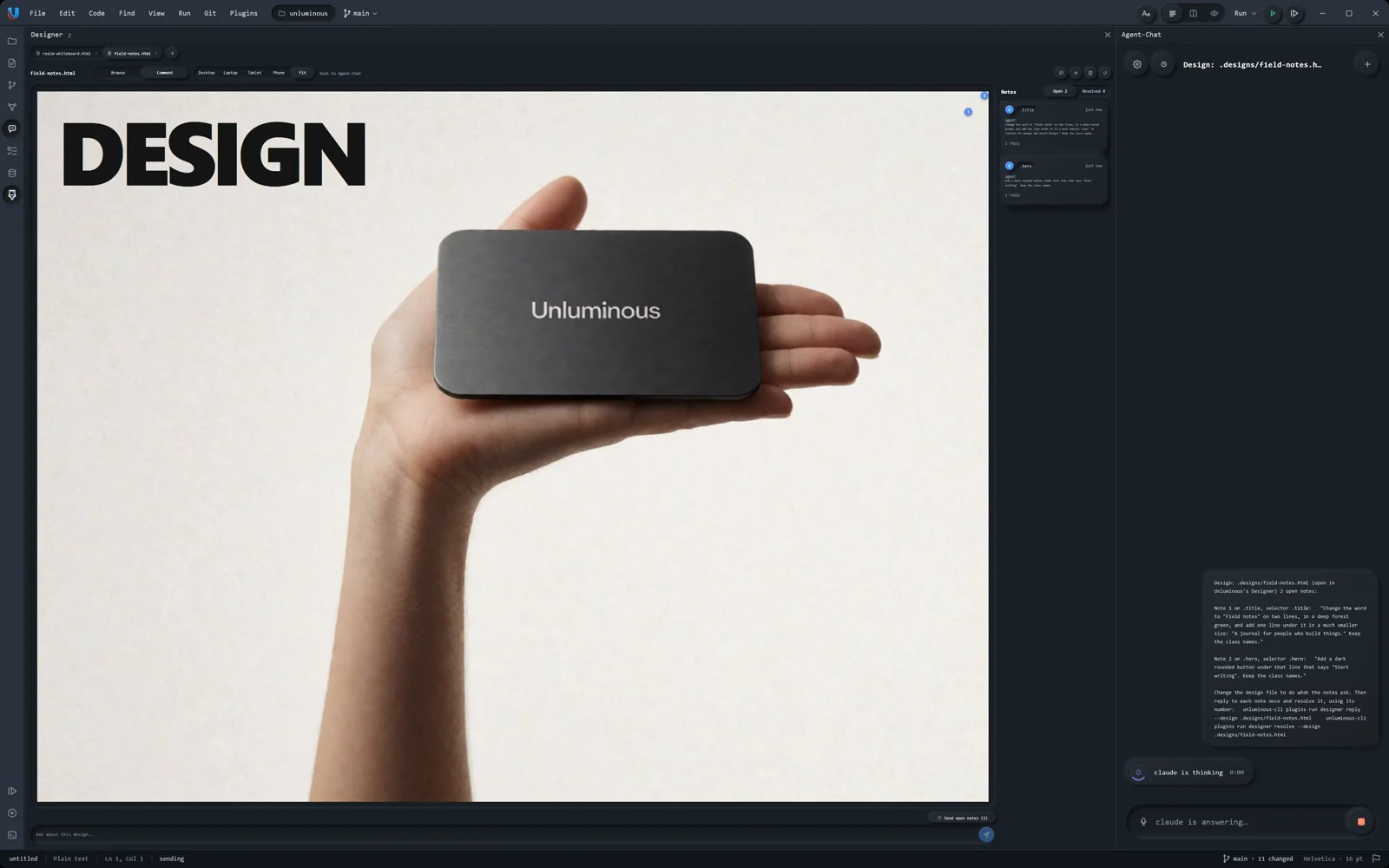
Design a screen in HTML with the agent you already have. Click an element, leave a note on it, press Ask agent, and the agent changes the file while the page reloads.
A design is one HTML file in the project's .designs folder. The Designer pane opens it in a tab and draws it at the width of a desktop, a laptop, a tablet or a phone. Choose Select and hover to outline an element; choose Comment and click an element to pin a note to it, like a pin on a canvas.
Ask agent sends the note, the element's CSS selector, its text and the start of its markup to Agent Chat, and the agent edits the file. The agent answers in the note's thread and marks it resolved. A note is kept even when its element changes; it is marked Detached rather than lost.
Before every request the design is copied, and History lists the copies so you can put an earlier one back. The notes are in <name>.comments.json beside the design, so they travel with it.
⤢
Two notes, one request, and the design updates. Sped up while Claude works.
From the command line
Make a design and pin a note to it
`comment` takes a CSS selector and the note. `ask-all` sends every open note in one message.
Command
unluminous-cli plugins run designer new pricing
unluminous-cli plugins run designer comment "main > h1" -- Make the heading two lines
unluminous-cli plugins run designer ask-all
An agent drives Unluminous with the same commands you can type: through the MCP tools, or by running unluminous-cli in a terminal. Every menu entry is a command, and every command reaches the same code a click does.
There is no second way of doing things. unluminous-cli action list is built by walking the real menus, so a menu entry added in a later version can be run by an agent the day it ships. Everything without a menu entry, such as reading a terminal or setting a breakpoint, is a command in the catalogue. The MCP tools are generated from that catalogue.
An agent you start in an Unluminous terminal, a realm node or a ticket already has unluminous-cli on its PATH and UNLUMINOUS_INSTANCE pointing at the window, so it reaches the right window without being told which.
Commands that look are separate from commands that change. Asking what a word would complete to, where a name is defined, or what is on the screen never types into your file or moves your caret.
⤢
Claude driving the window from Agent Chat. Sped up while Claude thinks.
unluminous-cli window screenshot shot.png writes a picture of the real window, whether or not it is in front, and the MCP tool hands that picture straight to the agent. unluminous-cli status answers with everything about the window in one reply, and --section keyboard says who holds the keyboard when typing seems to go nowhere.
plugins view <plugin> answers with what a plugin pane shows as data rather than pixels: the cards on the board, the messages in a chat, the rows in a grid.
Start a window with unluminous --background and it opens without coming to the front, so whatever you are typing into keeps the keyboard. Nothing an agent does needs the window in front.
For a gesture with no command of its own, such as a drag or a right click on one row, unluminous-cli input clicks, types, drags and scrolls by handing the window the same events a mouse and a keyboard produce. Positions are in the window's own points, which is what a screenshot is measured in. A command that names the thing, such as tab open or action run, is always the better choice.
unluminous-cli search answers from an index of the project kept in memory: find gives the same lines ripgrep gives, about 27 to 136 times faster; def and refs find where a name is defined and used; fragment gives the function around a line; outline lists a file's definitions; files finds files by name. A question in plain English, such as search find "where is the undo history kept", is answered from the code's definitions. The index follows changes on disk as they happen.
From the command line
Who has the keyboard
Unluminous's own focus, whether a text box has it, and which canvas node or editing pane the keys go to.
Unluminous opens any file that holds text, writes it back with the line endings it was read with, and gives you find and replace, multiple panes, highlights and folding.
A single click in the explorer opens a file in a tab that the next single click reuses, drawn faintly to say so. A double click, or typing into it, keeps the tab. Ctrl+Tab moves between tabs, Ctrl/Cmd+F4 closes one, and Ctrl/Cmd+Shift+T reopens the last one you closed.
A file is written back the way it was read. A file with Windows line endings keeps them, and typing one character never rewrites every line of the file. A file that is not UTF-8 opens for reading only, with its encoding named in the status bar. A picture opens in a tab that shows it, and zooms with the wheel.
Closing a tab with unsaved changes saves it. The tab title carries a dot while it has unsaved changes, and undoing back to the saved text clears the dot.
Ctrl/Cmd+F opens a bar over the file with a count of matches, next and previous, match case and whole word. Every match is marked and the current one is selected. Ctrl/Cmd+H adds Replace and Replace All; Replace All is one undo step however many matches it changes.
Ctrl/Cmd+Shift+F is Find in Files: it searches every file in the project and shows the chosen match in its file underneath the list. It can replace across the project too. A file that is open is changed in its tab and left unsaved for you to look at; a closed file is checked and written once. Build output in target, node_modules and __pycache__ is never searched.
Ctrl/Cmd+Shift+O is Go to File. Type part of a name and the list narrows; the letters only need to appear in order, so mdrs finds markdown.rs. A match in the file's name ranks above a match in its folders.
Find in Files: the matches, and the chosen one in its file.
Right click a tab and choose Split Right to move it into a new pane beside the first. Each pane has its own tabs. Drag a tab onto another pane to move it there, and drag the divider to share the width. View -> Split -> Unsplit All puts every tab back in one pane.
Select some words, right click, and choose one of four colours, or open the colour wheel for any colour. The colour stays behind those words as the file is edited and the next time it is opened, until you clear it. Highlighting is not an edit: it is not on the undo history and does not mark the file unsaved. The marks for the whole project are kept in .unluminous/highlights.txt.
The arrow beside a line number folds the block that starts on that line: a function, a bracketed block, a run of comments, or a Markdown section. The line numbers stay correct while lines are hidden, and copying across a fold copies the hidden lines too. Collapse All But Highlighted folds everything except the blocks that hold a highlighted passage.
For a Markdown or text file, the F button at the right of the title bar opens bold, italic, underline, strikethrough, colour, alignment and line spacing. These change how the text is shown while you work; Unluminous saves plain text. The button is not drawn for a source file.
Shortcuts
Ctrl/Cmd+F
Find in this file
Ctrl/Cmd+H
Replace in this file
Ctrl/Cmd+G,Ctrl/Cmd+Shift+G
Next and previous match
Ctrl/Cmd+Shift+F
Find in Files
Ctrl/Cmd+Shift+O
Go to File
Ctrl/Cmd+Shift+T
Reopen the last closed tab
Ctrl/Cmd+.
Fold or unfold the block at the caret
Ctrl/Cmd+Shift+.andCtrl/Cmd+Shift+,
Fold all, unfold all
Ctrl/Cmd+Alt+.
Collapse all but highlighted
Ctrl/Cmd+[andCtrl/Cmd+]
Navigate back and forward
From the command line
Find in the file that is showing
The count and every match's line, the same as the bar.
31 matches for 'relayout', on 1
  254:69       /// text, the formatting over it and its own paragraph style. [`relayout`] compares these against
  297:75   /// over it, its own paragraph style, and the width. That is what makes [`relayout`] possible, and it
  373:27   /// **`task-1984` C7.** [`relayout`] finds the paragraphs to lay out again by fingerprinting every
  416:8    pub fn relayout(
  431:10   /// is [`relayout`] exactly: every paragraph is fingerprinted and compared against the previous
Mark every occurrence of some words
Highlight a passage without opening the file. `highlight apply` takes a JSON list for many files at once.
Command
unluminous-cli highlight add README.md --text "the same command" --color yellow
Completion as you type, go to definition, find references, rename across the project, line commands, and moving a file with every import that names it.
Twelve language plugins ship with Unluminous: Rust, TypeScript, JavaScript, Python, CSS, HTML, JSON, YAML, TOML, SQL, shell and Mermaid. A plugin colours the language and tells the editor what a definition, a comment and an import look like in it. The Code menu and its keys are shown for a file whose language can answer them.
Go to definition, find references and rename work from an index Unluminous builds from the project's own text. Where two things share a name and the index cannot tell them apart, it shows both rather than guessing one, and a definition it inferred is marked as likely. Nothing is installed or downloaded for it to work.
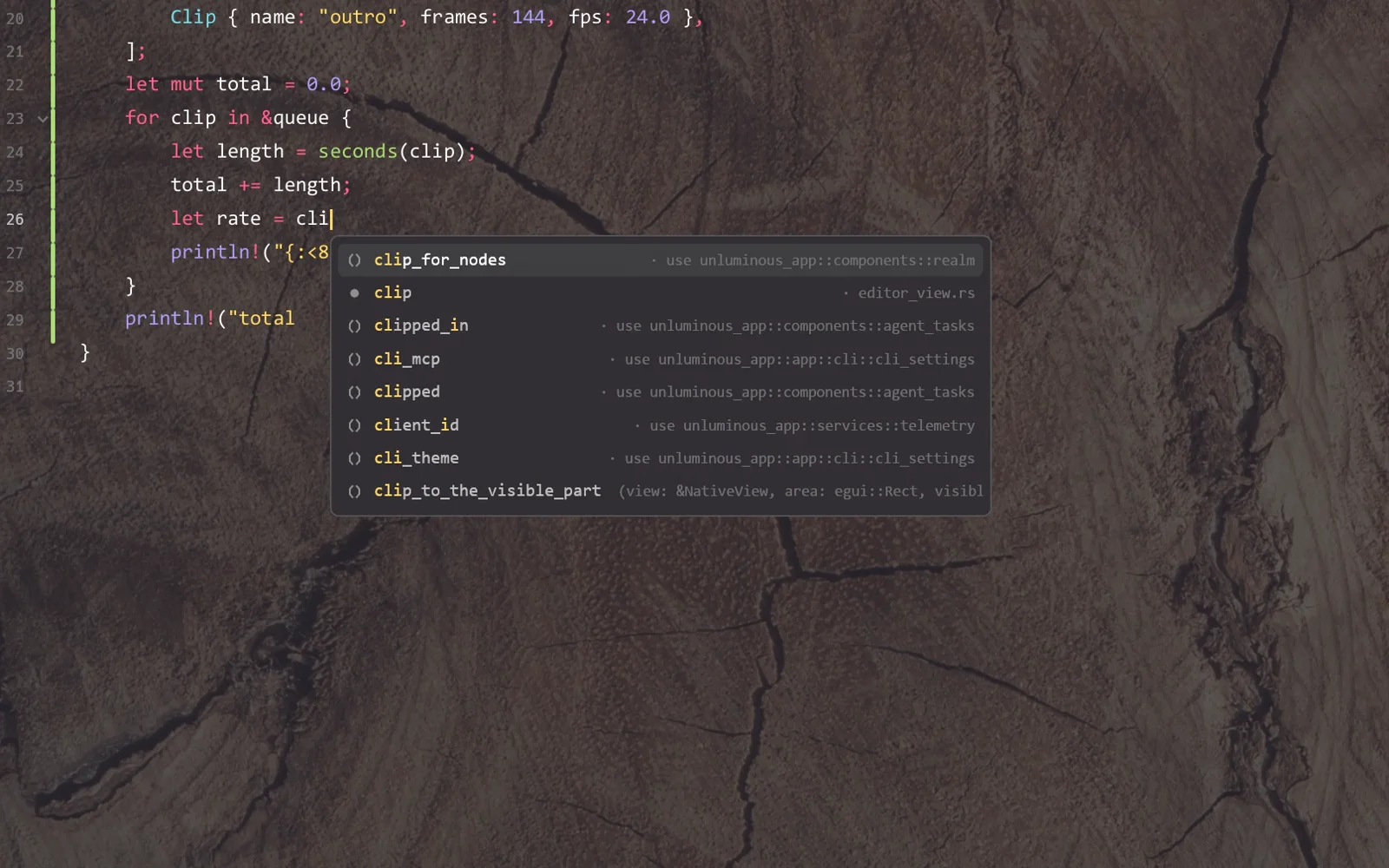
Type two letters of a word and a list of what it could become appears under the caret: names defined in this file, in the other open files and in the project, words already in the file, and the language's own keywords and types. The letters you type only need to appear in order, and the best match is first. Up and Down move through the list, Tab replaces the whole word, Enter replaces what you typed, and Escape puts it away.
Inside an import the list is the project's files, and between the braces it is what that file exports. Ctrl+Space asks for the list by hand. Set editor.suggestions to manual in Settings to stop it appearing on its own.
Ctrl/Cmd+Click a name, or press Ctrl/Cmd+B, to go to where it is defined. Alt+F7 lists every use of a name across the project, and marks the ones inside a comment or a string. Shift+F6 renames a name everywhere: the dialog lists every place it will change, with a tick box on each, and only the ticked places change. Open files are changed as one undo step each and left unsaved for you to look at.
Drag a file or a folder onto another folder in the explorer, or rename it, and every import, use line and Rust mod declaration in the project that named it is rewritten. Drag it back and they come back as they were. The status bar says how many references changed and names any file it skipped. unluminous-cli explorer move --dry-run prints the whole change without making it.
Choose several rows with Ctrl/Cmd or Shift and a click to cut, copy, paste, move or delete them together. Files copied in the explorer paste into Explorer or Finder, and files dropped from either land in the folder under the pointer. A deleted file goes to the Recycle Bin on Windows.
Shortcuts
Ctrl+Space
Complete Word
Ctrl/Cmd+BorCtrl/Cmd+Click
Go to Definition
Alt+F7
Find References
Shift+F6
Rename Symbol
From the command line
What a word would complete to, without typing it
`--stem` asks the completion engine about a word at the caret and changes nothing in the file.
A Markdown file can be shown as source, as a preview, or both side by side, scrolling together. Mermaid diagrams are drawn in the preview. Jupyter notebooks run against a real kernel.
The three buttons at the right of the title bar, or Ctrl/Cmd+1, 2 and 3, switch between the raw source, side by side, and the preview. In side by side the two halves scroll together, matched line to line. The preview draws headings, lists, quotes, tables, code coloured by its language, and pictures from the project. Text in the preview can be selected and copied.
A .mmd file, and a mermaid block inside a Markdown file, is drawn as a diagram. Twenty of Mermaid's diagram types are drawn: flowchart, sequence, class, state, entity relationship, requirement, pie, gantt, journey, git graph, mindmap, timeline, quadrant, xy chart, sankey, block, packet, kanban, radar and treemap. A type it does not draw is named rather than drawn wrongly. Nothing in a diagram is fetched from the internet.
Side by side: the source and its preview scroll together.
The diagram redraws as you type. Edges run in straight lanes with rounded corners, and a subgraph is laid out as one box so nothing outside it overlaps it.
A .ipynb file opens as a notebook: code, Markdown and raw cells, run against a Jupyter kernel started from the project's Python, with outputs drawn under each cell. Tables can be sorted, tracebacks folded, and charts shown. A Rust notebook runs on the evcxr kernel. Completion in a code cell asks the kernel.
Notebook keys follow Jupyter's: in command mode A and B add a cell above and below, D D deletes one, M and Y change its kind. Debug Cell runs a Python cell under the debugger with your breakpoints. File -> New Jupyter Notebook makes one, and unluminous-cli notebook export writes HTML, Markdown or a script.
A notebook with its outputs under each cell.
Shortcuts
Ctrl/Cmd+1
Raw Markdown
Ctrl/Cmd+2
Side by side
Ctrl/Cmd+3
Markdown preview
From the command line
Run every cell of a notebook and wait
`--wait` returns when the cells finish. `notebook cell 3` reads one cell's outputs as text.
The Git menu runs the git on your machine, with your credentials, hooks and signing, so a push from Unluminous is the same push you make in a terminal.
Without asking, Unluminous shows the branch in the title bar and the status bar with how far it is from its upstream, tints each file in the explorer by its git status, and marks each changed line in the gutter. Click the branch in the title bar to switch branches.
Git -> Commit... (Ctrl/Cmd+K) opens the commit dialog: the changed files as a tree with a tick box each, the unversioned files, Amend, the message with your last twenty messages behind a button, and Commit or Commit and Push. Ticking a file stages it at once.
Show Diff, Compare with Revision, Show History, Annotate with Git Blame, Rollback, Push, Pull, Fetch, Merge, Rebase, branches, tags, stashes and remotes are all on the menu and on the right click menu of any explorer row. Each command runs on a thread, so the window keeps drawing during a fetch, and every message in the status bar is git's own words. A merge that stops on a conflict says so, marks the files, and adds Continue and Abort to the menu.
⤢
A change, its diff, the commit, the history and blame.
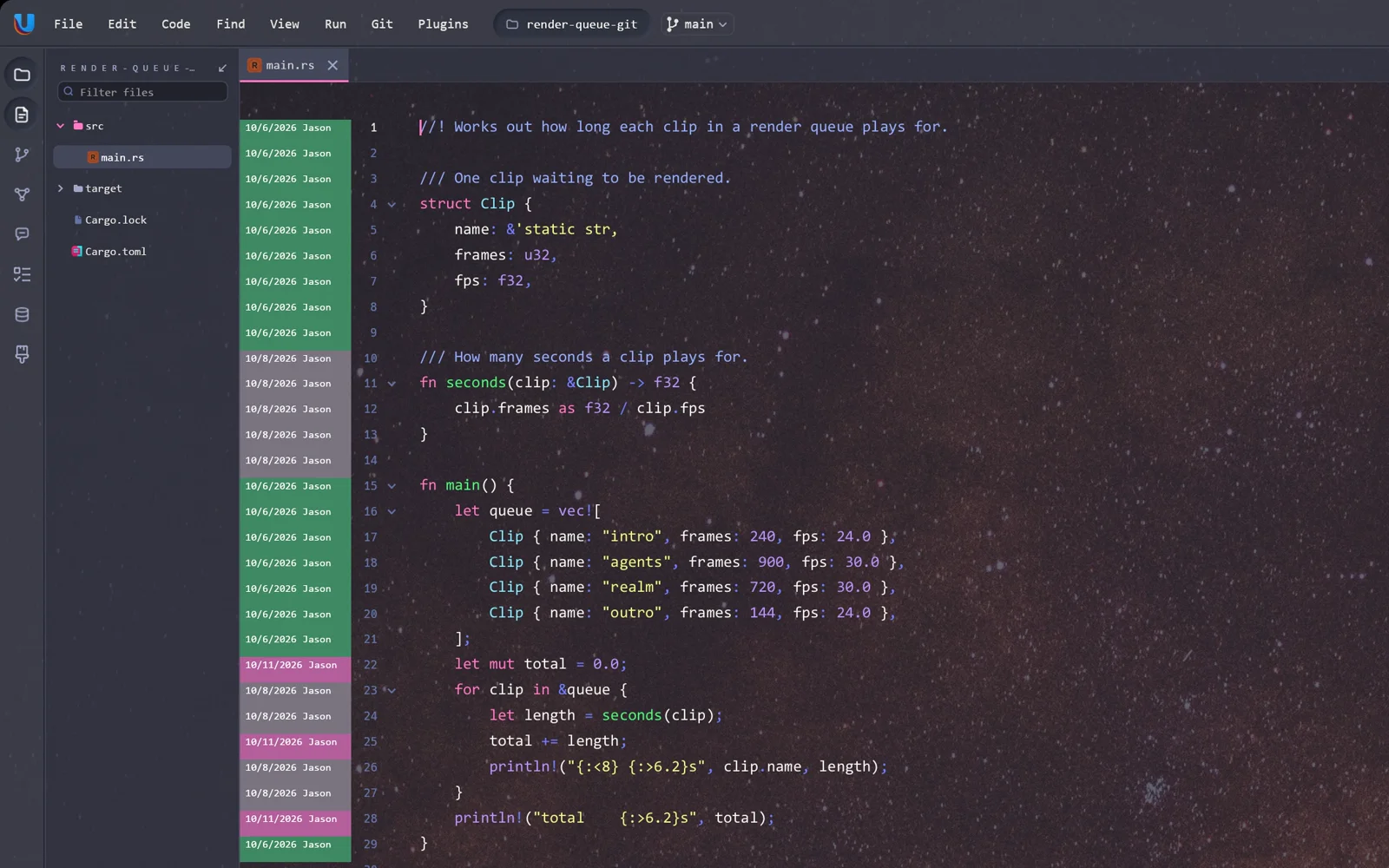
Annotate with Git Blame puts each line's author and date in the gutter. Show History lists the commits that touched the file, and a commit opens as its diff.
Blame down the gutter.
Shortcuts
Ctrl/Cmd+K
Commit
Ctrl/Cmd+Shift+K
Push
Ctrl/Cmd+D
Show Diff
Ctrl/Cmd+Alt+A
Add the file to git
Ctrl/Cmd+Alt+Z
Rollback
Ctrl/Cmd+Shift+`
Branches
Ctrl/Cmd+Alt+N
New Branch
From the command line
What git says about the project
The branch, any unfinished merge or rebase, and each changed file.
A run configuration is a named command line. The play button runs it in the run tile; the bug button runs the same configuration under a debugger, stopping at the breakpoints you set in the gutter.
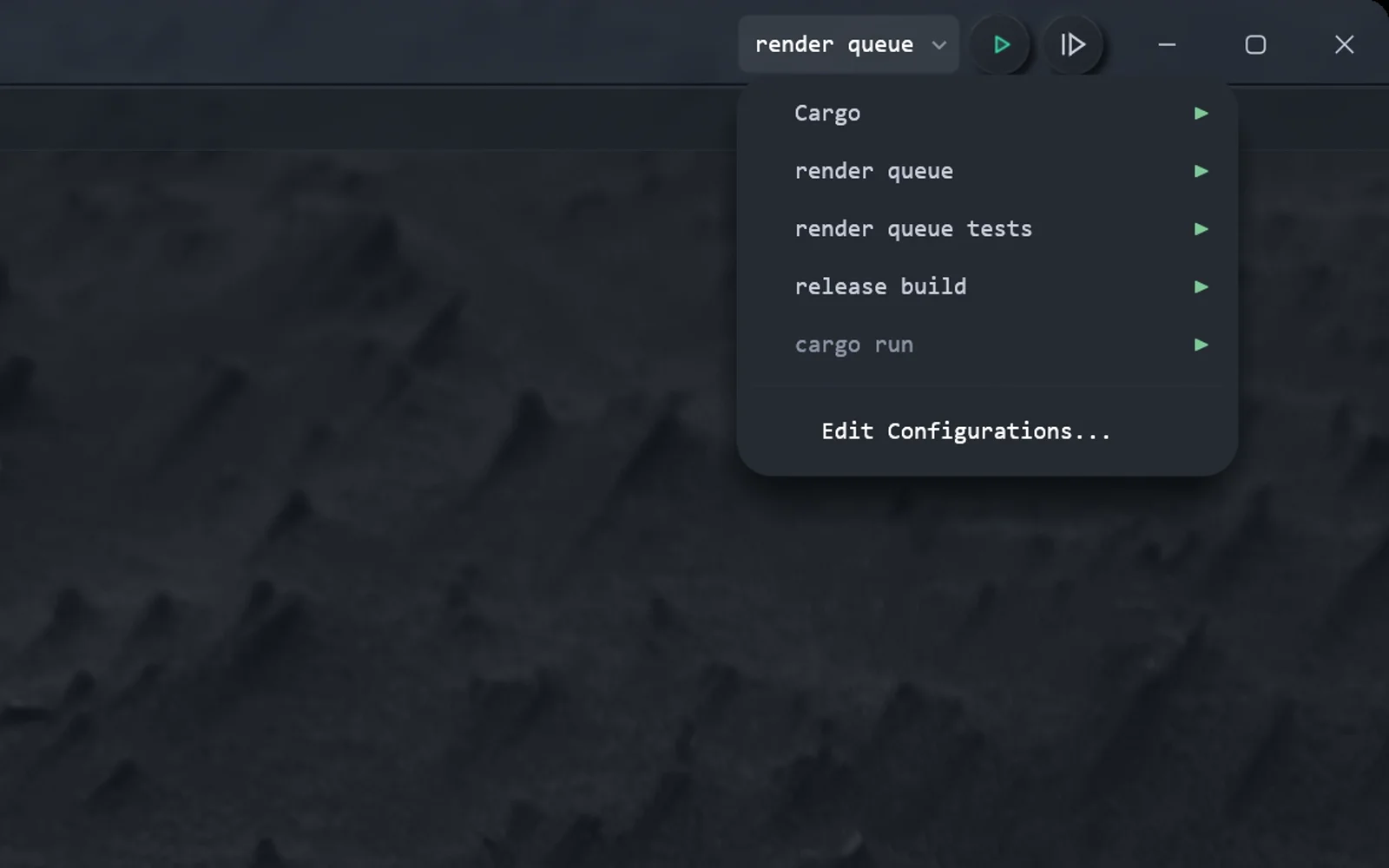
The run widget at the right of the title bar shows the chosen configuration, a play button and a debug button. Run -> Edit Configurations... adds one: a name, a command such as cargo run --release or npm run dev, the folder it runs in and its environment variables. Unluminous suggests configurations from Cargo.toml and package.json, and a file can be run on its own when its language says how.
The program runs in the run tile, in a real terminal, so its colours and prompts work. The first press of Stop sends the interrupt a program can catch; two seconds later, or on a second press, the program is ended. The exit code is shown in the tab's strip. No shell runs the command line, so write pwsh -Command ... or bash -c ... when you want one.
Configurations are kept in .unluminous/run-configurations.conf, so the project shares them.
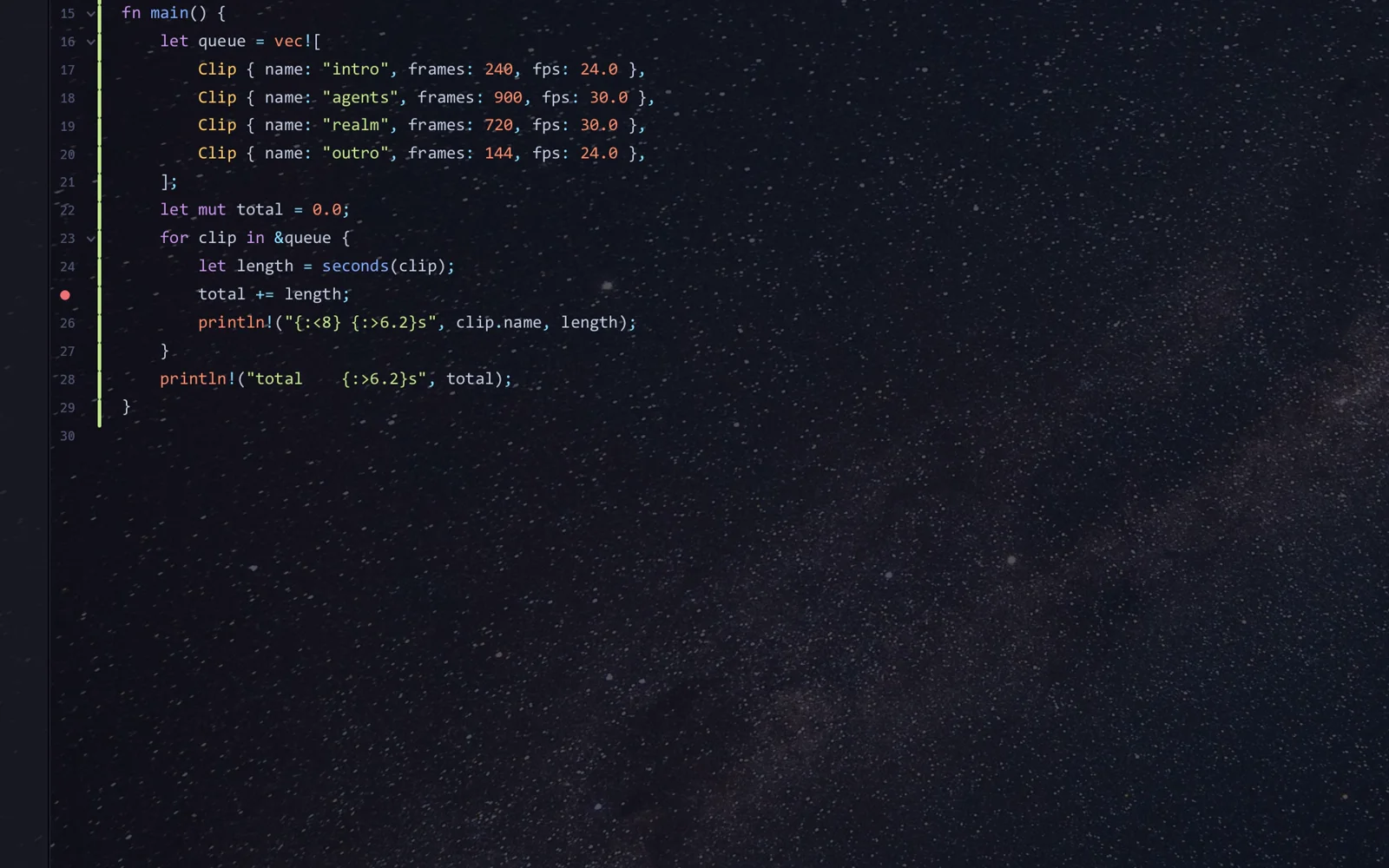
Click the gutter to set a breakpoint, a red dot over the line number, and press the bug button, or Shift+F9 on Windows and Ctrl+D on macOS. The program stops on the line, the call stack and the variables are in the debug tile, and each local's value is drawn at the end of the line that names it. Rest the pointer on a name to see its value, open it into its fields, and type over a value to change it in the running program.
Right click a breakpoint and choose Edit Breakpoint... to give it a condition, or a message to log instead of stopping. A breakpoint the debugger could not place is drawn hollow. Breakpoints move with their lines as you edit, and are kept in .unluminous/breakpoints.conf.
Unluminous speaks the Debug Adapter Protocol, the protocol the debuggers already speak. Rust and other native code use LLDB (lldb-dap or CodeLLDB) and JavaScript and TypeScript use js-debug. For cargo run, Unluminous builds the program with cargo and then debugs the binary cargo names. Nothing is downloaded: when a debugger is missing, the debug tile names it and offers the command that installs it, which runs in the run tile where you can watch it.
⤢
Setting a breakpoint and stepping through a loop.
Shift+F10
Run
Ctrl/Cmd+F2
Stop
Shift+F9 (Ctrl+D on macOS)
Debug
Ctrl+F8
Toggle Breakpoint
F8
Step Over
F7
Step Into
Shift+F8
Step Out
F9
Resume
Alt+F9
Run to Cursor
Alt+F8
Evaluate Expression
From the command line
Which debuggers this machine has
Each debugger Unluminous drives, where it was found, the languages that use it, and the command that installs a missing one. Run it first when Debug does nothing.
Command
unluminous-cli debug adapters
Answerobserved
2 of 2 debug adapters are installed
lldb     found    C:\Users\jason\AppData\Local\Unluminous\adapters\codelldb\extension\adapter\codelldb.exe
         used by  Rust
         looked   codelldb, lldb-dap
         note     With the MSVC toolchain, LLDB reads PDB debug information incompletely: breakpoints and stepping work, and some enums and collections render poorly.
node     found    C:\Users\jason\AppData\Local\Unluminous\adapters\js-debug\src\dapDebugServer.js
         used by  JavaScript, TypeScript
         looked   dapDebugServer.js
Run a server and read its port from the log
`run output` reads everything the program wrote, scrollback included, and `--wait-for` holds the answer until a line appears.
Command
unluminous-cli run add dev "npm run dev"
unluminous-cli run start dev
unluminous-cli run output dev --wait-for "Local:" --tail 5
Stop at a line and read the variables
`--wait-for-pause` returns once the program has stopped and the variables have been read.
A terminal along the bottom with tabs, running the shell you use: PowerShell 7 on Windows when it is installed, and your login shell on macOS.
Press Ctrl with the backtick key, or the terminal button at the bottom of the rail. Each tab runs a shell in the project folder. The plus adds a tab; a tab is named after the program running in it, so a tab running claude says so. Right click a tab to rename it, and drag a tab to reorder the strip.
The terminal handles 24 bit colour, bold, italic, underline, wide characters, full screen programs, mouse reporting and ten thousand lines of scrollback. Select text with the mouse to copy it.
On Windows, Ctrl+C copies when text is selected and interrupts when nothing is, Ctrl+Shift+C always copies, and Ctrl+X reaches the program, which is how you leave nano.
When the window closes and opens again, each tab comes back as a new shell in the folder it had got to, with its last screenful printed back. Settings -> Tools -> Terminal chooses the shell, the font size, and shell integration, which lets a PowerShell tab report the folder it has changed to.
Two named tabs, one running git.
From the command line
Run a command and wait for its result
`terminal send` types a line into the tab that is showing. `terminal read --wait-for` holds the answer until the text appears on the screen.
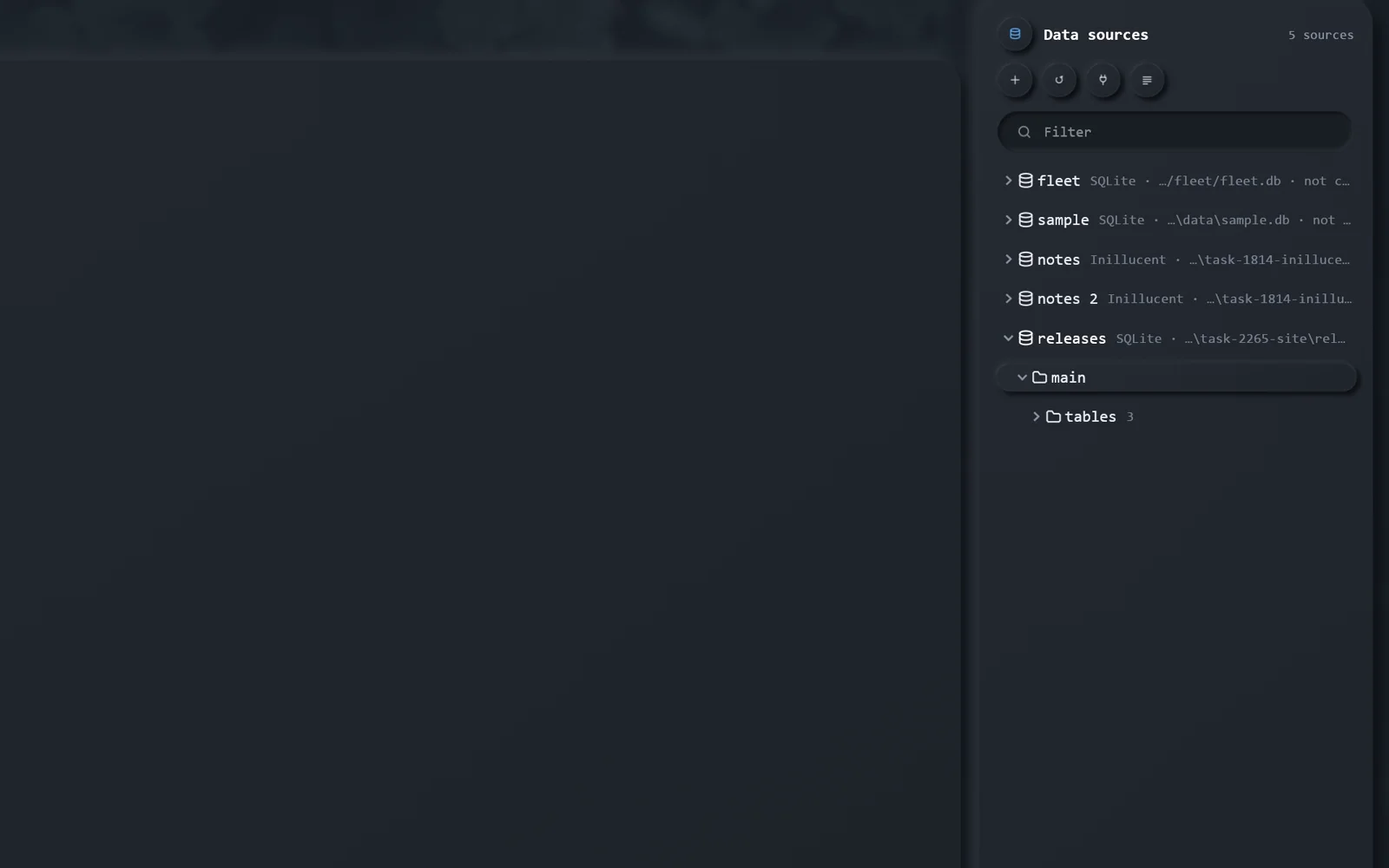
Query consoles and row editors for PostgreSQL, SQLite and Inillucent, with a tree of data sources, schemas, tables and columns.
Open the database pane from its rail button and press New query, or right click the tree, to add a data source: a name and a postgres:// address, or the path of a SQLite or Inillucent file. A password is typed into the dialog and kept in your operating system's credential store; only the name of the entry is written to a file. A URL with a password in it is refused.
A console runs the statement under the caret with Ctrl/Cmd+Enter and shows the rows in a grid. Double click a table to open its rows. The grid has a WHERE and an ORDER BY you type SQL into, pages through the rows, and lets you edit them: double click a cell to type in it, add a row, delete a row. The changes wait until you press Save, and you can read them first as the exact statements they will become. Save writes them in one transaction.
A grid can only be edited when its rows come from one table with a primary key, so an edit always changes exactly the row you meant. On an Inillucent database a vector column is drawn as a vector, and a search index says what it was declared with.
Pending changes are marked in the grid until Save. A statement that finds the row has moved underneath it rolls the whole save back rather than reporting success.
A table's rows, ready to edit.
From the command line
Add a SQLite file and query it
`query` does not wait; `state` says when it has finished and `result` has the rows.
Command
unluminous-cli plugins run database add-source shop data/shop.sqlite
unluminous-cli plugins run database query "select name, price from products order by price desc limit 5"
unluminous-cli plugins run database result
An HTML file in the project, or any web address, opens in a browser tab inside Unluminous, with its own back, forward, reload and zoom.
File -> Open Web Address... opens an address in a tab. Right click an HTML file in the explorer and choose Open in Browser -> Tab to render it. A local page is served from the project, and when a stylesheet, script or picture it uses changes on disk, the page reloads.
Each browser tab keeps its own history and its own zoom. Sign ins and cookies are kept between restarts in a profile in your settings folder. The address bar offers the addresses you have visited. Links in Agent Chat, ticket comments and the Markdown preview open in a browser tab with a click; their right click menu can open them in your own browser instead.
In the Realm, a browser node can show just one element of its page: choose Select Element from the page's right click menu and click the element, and the node fills with it.
From the command line
Open a page
A local HTML file or an `http` address. `--system` opens the address in your own browser instead.
Command
unluminous-cli browser open examples/site/index.html
Settings opens with Ctrl/Cmd+comma. Every change takes effect at once and is written to a plain text file. Seven themes ship, and the background can let the desktop show through while the text stays solid.
The Settings window lists its pages down the left: Appearance, Theme, Editor, Plugins, Terminal, MCP, AI Configuration, and a page for each plugin that has settings. The search box at the top finds a setting by name.
Appearance sets the editor font and size, which apply to every open file, the font the menus and panels use, the background picture and its opacity. Editor sets line numbers, what one indent is, trailing whitespace, how completion appears, line endings for new files, the update check, and usage statistics.
Unluminous Dark and Unluminous Light are built in, and five more come with the bundled theme plugin: Islands Dracula Colorful, Material Palenight, Material Deep Ocean, Monokai Pro and One Dark. A theme colours the whole window, the code, and the terminal. The accent colour can be changed on its own, and the icon set chooses between the material marks and the classic ones.
Drag Opacity under Background below 100% and the window's background fades so the desktop or a picture shows through, while every letter stays fully solid. Five background pictures come with Unluminous, and you can add your own from Settings or with unluminous-cli background add.
Every setting is a name = value line in settings.conf in your settings folder. unluminous-cli settings list prints each one with its value, what it means and what it accepts. A setting Unluminous does not recognise is kept and ignored, so a file edited by hand never stops Unluminous starting.
From the command line
The themes you can choose
Each theme with the plugin it came from. `theme set` paints the window in one.
Command
unluminous-cli theme list
Answerobserved
7 themes, and unluminous/dark is the one showing
*unluminous/dark             unluminous        Unluminous Dark
 unluminous/light            unluminous        Unluminous Light
 themes-bundle-1/dracula     themes-bundle-1   Islands Dracula Colorful
 themes-bundle-1/palenight   themes-bundle-1   Material Palenight
 themes-bundle-1/deep-ocean  themes-bundle-1   Material Deep Ocean
 themes-bundle-1/monokai-pro themes-bundle-1   Monokai Pro
 themes-bundle-1/one-dark    themes-bundle-1   One Dark
Read and change a setting
A change takes effect at once in every tab and is written to the file.
A plugin is a folder holding a plugin.conf file and an icon. Nothing in a plugin is run: a language plugin describes the language, and the panes are built into Unluminous and switched on by their plugins.
Eighteen plugins ship with Unluminous. Twelve describe languages. The others are Agent Chat, Agent Tasks, the database explorer, the Designer, the Realm and the theme bundle. Settings -> Plugins switches each on or off; switching one off takes away its pane, its menu and its settings page at once.
A language plugin names the language's extensions, its keywords, builtins and types, what a comment and a string look like, the colour of each kind of word, which keyword introduces a definition, what an import looks like, how to run a file, and which debugger to use. Because it is data, a plugin cannot run code on your machine.
unluminous-cli plugins install <id> writes a bundled plugin into your settings folder, where you can edit its plugin.conf. A plugin there replaces the bundled one with the same id. plugins reload reads every plugin again without a restart, and a plugin with a mistake in it is refused with a sentence saying what is wrong.
A new language is a new folder with a plugin.conf. Start from a plugin for a language like yours: the Rust and TypeScript plugins show definitions and imports, and the CSS and HTML plugins show the keys for languages where a hyphen is part of a word or where markup holds other languages.
From the command line
The plugins this Unluminous has
Each plugin, whether it is on, and what it claims.
unluminous-cli drives a running Unluminous from a terminal, a script or an agent. It has 263 commands in 27 areas, and --json makes every answer something a program can read.
A command is an area and a verb: unluminous-cli tab open README.md, unluminous-cli terminal send cargo test, unluminous-cli window screenshot shot.png. unluminous-cli --help lists the areas, unluminous-cli <area> --help lists an area's verbs, and the command reference has every command with its arguments, flags and examples.
A command reaches the same code as the menu entry or the click it stands for. The answer is a sentence written by the window, which is the one that knows what happened: which tab the file opened in, what a setting was before it changed. With --json the answer also carries the result as data.
A command the window refuses says why, and exits with status 1. A mistyped flag or a missing argument exits with status 2 and changes nothing. A flag a command does not have is refused rather than ignored.
A window listens on 127.0.0.1, on a port the operating system chose, and nowhere else. It writes the port and a token to a file in your settings folder. A request is one line of JSON carrying the token; the answer is one line of JSON. Any language with a socket and a JSON library can drive Unluminous this way. The token is what stops a web page, which can post to a local port but cannot read a file, from driving your editor. unluminous --control off closes the socket.
The usage line, what it does, its arguments and flags, and examples.
Command
unluminous-cli window screenshot --help
Answerobserved
unluminous-cli window screenshot <file> [--timeout <milliseconds>]

Write what the window is showing to a PNG file. The picture is of the real window, so it is how what a command did can be looked at.

Examples:
  unluminous-cli window screenshot _agent_output/after.png

Arguments:
  <file>              Where to write the PNG. A folder that is not there is made.

Flags:
  --timeout <milliseconds>  How long to wait for the picture. 5000 by default.
Every command unluminous-cli has, with its usage line, what it does, its arguments, its flags and examples, generated from the catalogue the command line itself reads.
The reference is on a page of its own: the command reference. It is written from unluminous-cli commands --json each time Unluminous is released, so it describes the version on this page and cannot list a command that does not exist.
The same reference is on your machine: unluminous-cli commands prints it as data, unluminous-cli <area> <verb> --help prints one command, and an agent connected over MCP can read it as the resource unluminous://commands.md.